# Archify Diagram Viewer
View [Archify](https://github.com/tt-a1i/archify) diagrams inside VS Code. Click a `.archify` file (YAML) and the interactive diagram opens straight away; open its source beside it and the diagram follows your edits. Rendered Archify HTML files open in a viewer tab instead of a browser.
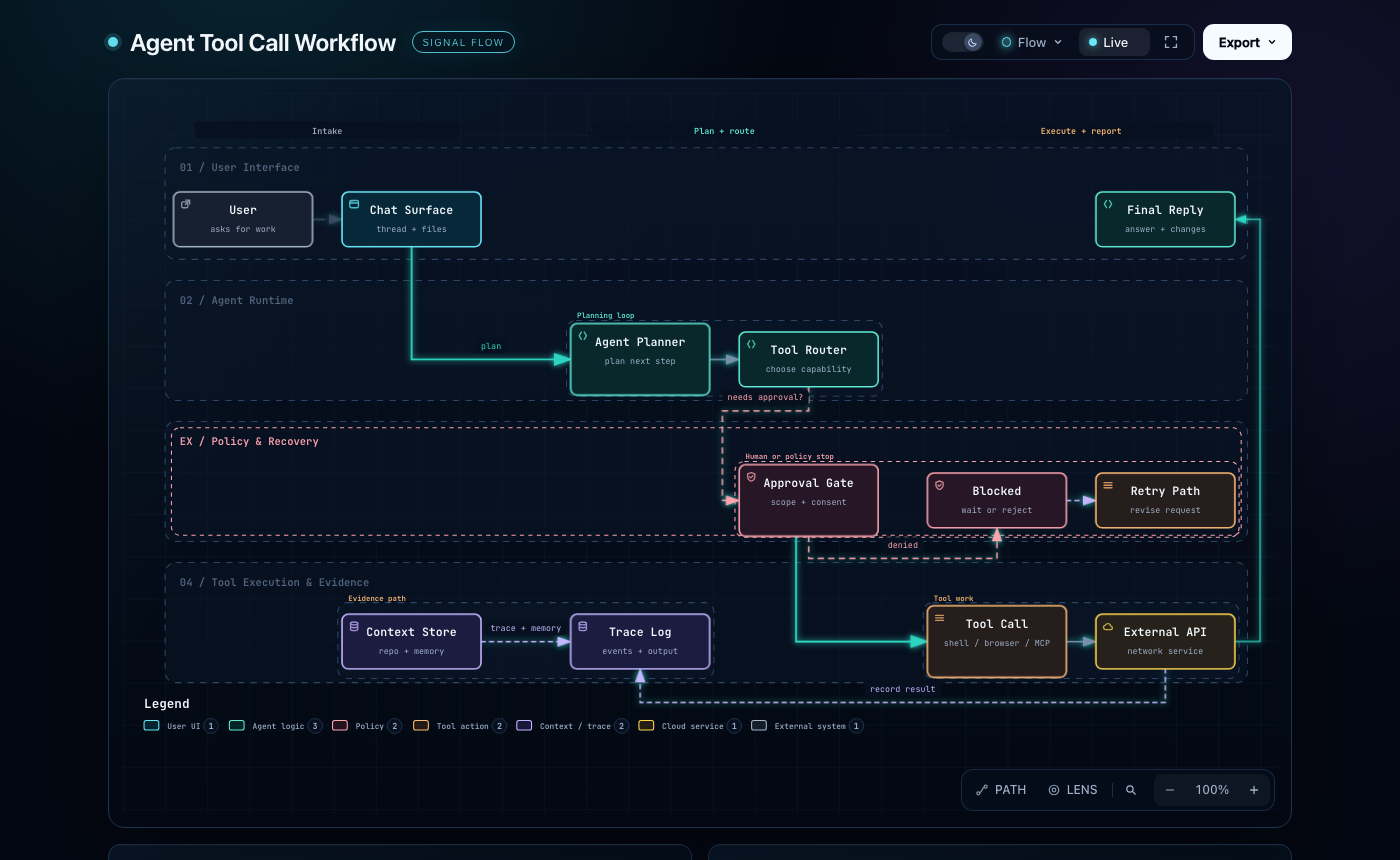
This is an unofficial extension. It bundles the Archify renderer (MIT, © tt-a1i) and runs it on VS Code's own Node runtime, so nothing else needs to be installed.
## Quick start
1. Create a file ending in `.archify`, for example `hello.archify`:
```yaml
schema_version: 1
diagram_type: architecture
meta:
title: Hello Archify
output: hello.html
components:
- { id: browser, type: frontend, label: Browser, pos: [40, 120], size: [140, 60] }
- { id: api, type: backend, label: API, pos: [260, 120], size: [140, 60] }
- { id: db, type: database, label: PostgreSQL, pos: [480, 120], size: [140, 60] }
connections:
- { from: browser, to: api, label: HTTPS }
- { from: api, to: db, label: SQL }
```
2. Click it in the Explorer: the diagram opens.
3. To edit, use **Show Source** in the editor title. The YAML opens beside the diagram, which re-renders as you type.
The same file is in [examples/hello.archify](examples/hello.archify).
## The `.archify` format
A `.archify` file is an Archify diagram source written in **YAML**. It has the same fields as the JSON the Archify CLI renders, and plain JSON content still works, since JSON is valid YAML. `diagram_type` selects the kind of diagram: `architecture`, `workflow`, `sequence`, `dataflow` or `lifecycle`.
- **Opening:** the **Archify Diagram** editor is the default for `.archify`. Use *Reopen Editor With… → Text Editor* to edit the YAML full-screen.
- **Completion:** with the [YAML extension](https://marketplace.visualstudio.com/items?itemName=redhat.vscode-yaml) (`redhat.vscode-yaml`) installed, `.archify` files get completion and hover from Archify's schemas. The schema follows `diagram_type`.
Archify's own JSON naming, `name.architecture.json`, `name.workflow.json` and so on, works too. Those open as text with a preview button, and get schema help from VS Code's built-in JSON support.
## Features
- **Diagram editor**: `.archify` files open as the rendered diagram. **Show Source** opens the YAML beside it, and edits re-render live.
- **Live preview**: for Archify's `*.architecture.json`-style files, or any JSON with a `diagram_type`. Use the preview button in the editor title, Cmd/Ctrl+K V (to the side) or Cmd/Ctrl+Shift+V. The preview keeps the focus and route you selected (`#focus=…`, `#route=…`) when it re-renders.
- **HTML viewer**: right-click a rendered `.html` file and choose **Open in Archify Viewer**, or use *Reopen Editor With… → Archify Diagram Viewer*. For Archify HTML already open as text, a button appears in the editor title. The viewer reloads when the file changes on disk.
- **Problems**: YAML syntax errors, plus `archify validate`'s schema, layout and evidence problems, appear at the matching line of the source.
- **Schema help**: completion and hover come from Archify's own schemas: built in for the JSON files, and through the YAML extension for `.archify` files.
- **Source links**: in source-backed diagrams, clicking a source reference opens that file and line range in the editor. If the file is not in the workspace, the web link opens instead.
- **Export**: the diagram's own Export menu (PNG, SVG, share card, …) saves through a VS Code save dialog.
- **Commands**: *Archify: Render to HTML File…*, *Archify: Open in Browser*, *Archify: Refresh Preview*, *Archify: Show Source*.
## Source evidence
A diagram that declares `meta.repository` and `sources` is verified against a local Git checkout whose `origin` and pinned commit match. The extension uses the Git top-level directory of the diagram file, or `archify.repoRoot` when set.
When verification fails, the default (`archify.sourceEvidence: "fallback"`) still shows the diagram without source links, explains why in a notice, and reports the reason as a warning. Set it to `"strict"` to treat this as an error, as the Archify CLI does. *Render to HTML File…* always verifies strictly and asks before rendering without source links.
## Settings
| Setting | Default | Description |
|---|---|---|
| `archify.theme` | `vscode` | `vscode` follows the color theme; `dark` or `light` force one; `diagram` keeps the diagram's own choice. |
| `archify.preview.liveUpdate` | `true` | Re-render while typing; when off, re-render on save. |
| `archify.preview.debounceMs` | `400` | Delay before re-rendering after an edit. |
| `archify.validation.enabled` | `true` | Report validation results in Problems. |
| `archify.quality` | `""` | Force the `standard` or `showcase` quality profile. |
| `archify.sourceEvidence` | `fallback` | `fallback` or `strict` handling of unverifiable source evidence. |
| `archify.repoRoot` | `""` | Checkout used to verify source evidence. |
| `archify.nodePath` | `""` | Node.js 18+ executable to use instead of VS Code's runtime. |
## Security
Diagrams run in a webview with a strict content security policy. Only the page's own inline scripts run (via a per-render nonce), there is no network access for scripts or fetches, and links open through VS Code.
## Development
```bash
npm install
npm run build # bundle to dist/
npm test # unit tests + renderer tests (Node)
npm run test:integration # runs the suite inside VS Code
npm run package # build archify-vscode-ext-.vsix
```
Press F5 to launch an Extension Development Host with the test fixtures.
### Updating the bundled renderer
`vendor/archify/` and `schemas/` are generated from an Archify checkout:
```bash
node scripts/sync-archify.mjs /path/to/archify # default: ../../ws-storm/archify
npm test
```
`vendor/archify.json` records the upstream version and commit.
## License
MIT. See [LICENSE](LICENSE). The bundled renderer is MIT-licensed by tt-a1i; see `vendor/archify/LICENSE` and `vendor/archify/THIRD_PARTY_NOTICES.md`.